Rosetta 2: what it is and how to install it
Rosetta 2 is Apple’s translator for a Mac with an Apple chip (M1, M2, M3, M4, and later). Those Macs do not run an Intel app as-is. Rosetta translates the Intel code while the app is open, so you double-click it the way you always have.
Install it when macOS asks
The first time you open an Intel app, macOS usually offers to install Rosetta 2. Agree, and the system finishes the install. There is no Rosetta icon in the Dock. It stays in the background and starts when an Intel app needs it.
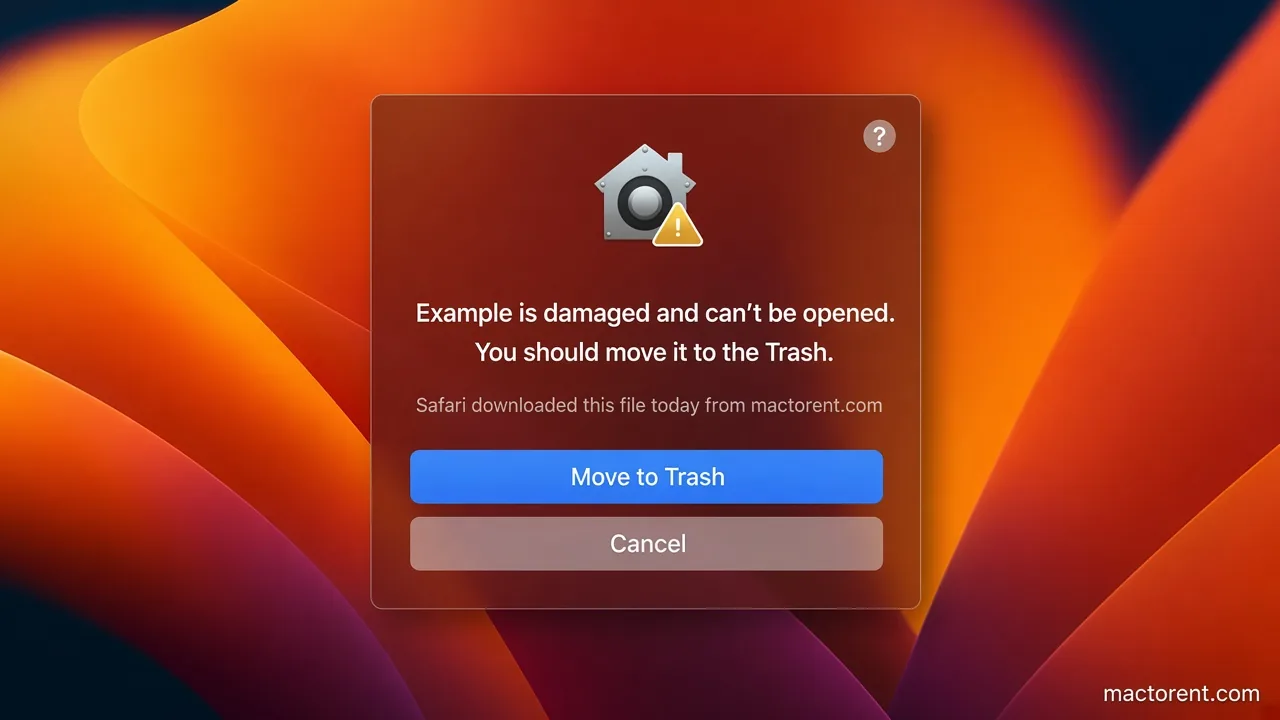
That prompt does not always appear. If the app never opens and macOS never asks, install Rosetta from Terminal.
Install it from Terminal
- Open Terminal. It is in Applications → Utilities. Spotlight finds it if you type Terminal.
- Paste this command and press Return:
softwareupdate --install-rosetta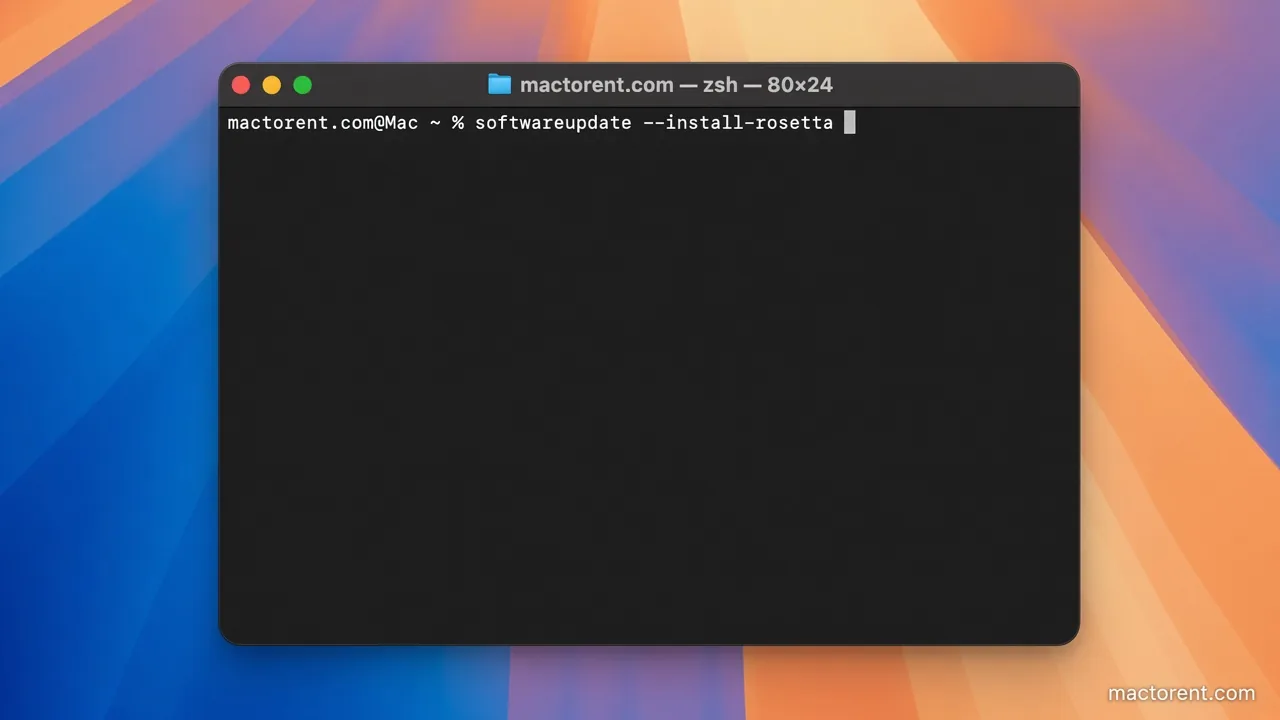
- macOS checks whether Rosetta 2 is already installed and installs it if it is not.
- When the license agreement appears, type the letter A and press Return. A is the English word “agree”, not a password.
After that, open the Intel app again. Rosetta does not show a separate window.
How long Apple keeps it
Apple is dropping ordinary Intel apps over time. Rosetta stays in macOS 27. From macOS 28, Apple has said the translator remains only for some older games that still use Intel pieces. An everyday app will need an Apple silicon build by then. Games that never got that build can keep using Rosetta longer than other software.