SIP on a Mac: what it is and how to turn it off
System Integrity Protection, also called SIP or rootless, arrived in OS X El Capitan (10.11). It stops even an administrator from changing protected system files, so a bad program cannot rewrite them.

Why people turn it off
With SIP on, you cannot delete a preinstalled Apple app such as Safari, or roll iTunes back after an update, because those files are protected. Some modified apps also refuse to run every feature until SIP is off, because of how their activation is built.
From macOS 11 Big Sur onward, turning SIP off does not make the System volume writable. That volume stays read-only, and Apple moved its preinstalled apps there, except Safari. SIP is still worth turning back on when you are done.
Turn SIP off
You cannot turn SIP off from the Mac you are using. The protection would be pointless if a command inside macOS could drop it. Boot Recovery, then use Terminal there.
- Boot Recovery.
- Intel: restart. As soon as the screen goes black, hold Command (⌘) and R until the Apple logo appears.
- Apple silicon: shut down. Hold the power button for about ten seconds, then click Options. Enter an administrator password if macOS asks.
- Open Terminal from the Utilities menu.
- Run this command and press Return:
csrutil disable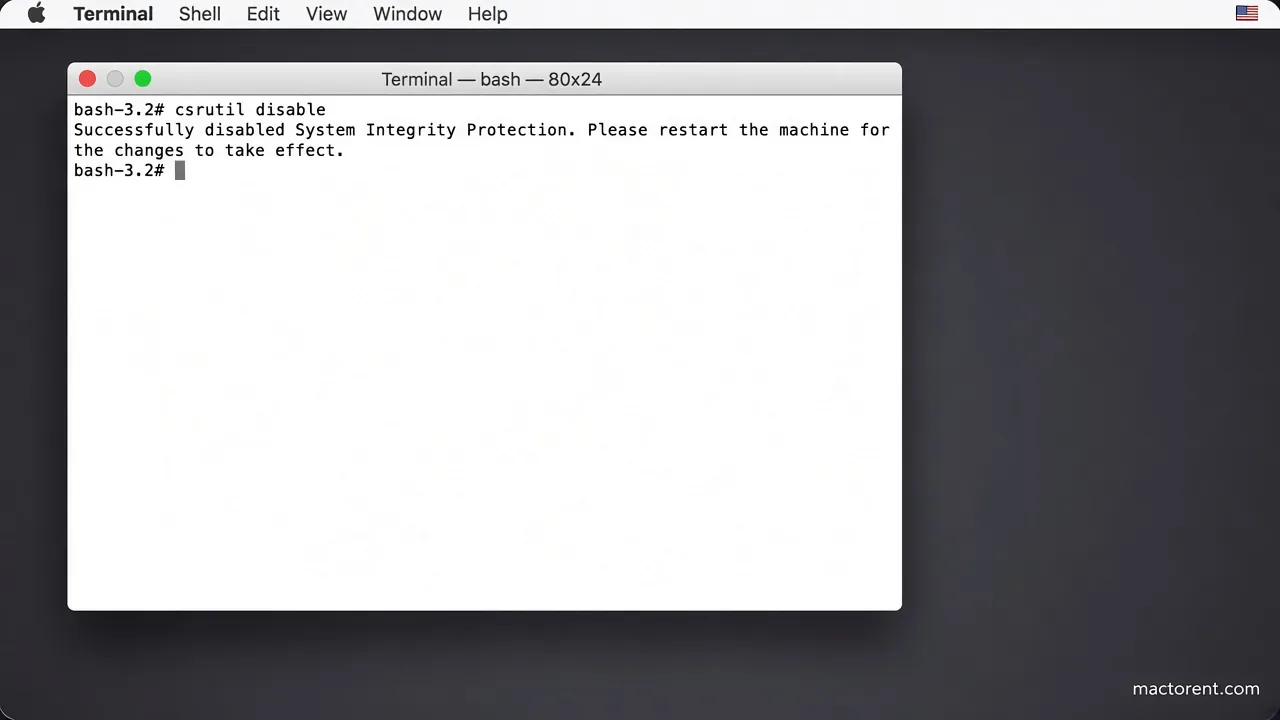
Not every modified app needs SIP fully off. This command turns it off only for the file system and leaves kernel extensions and NVRAM alone:
csrutil enable --without fs- Restart the Mac.
Sometimes the Mac then boots Recovery again and again. On the next restart, hold Option (Alt) until the disk picker appears. Choose the disk with macOS and press Return.
Turn it back on
You do not have to leave SIP off. After the app has done what it needed, boot Recovery again and run:
csrutil enableCheck the state from a normal desktop or from Recovery:
csrutil statusTerminal prints enabled or disabled. Apple’s own write-up is on support.apple.com.